Sharing Articles with Your Students
Sharing Articles with Your Students
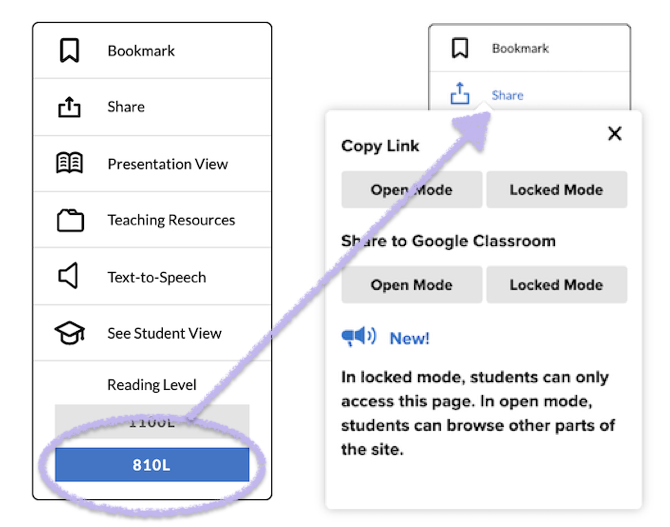
You can share any magazine article directly with your students, so they won’t have to search around to find the reading you assigned them. Just click the share button on the side of any article to view the Copy Link options.

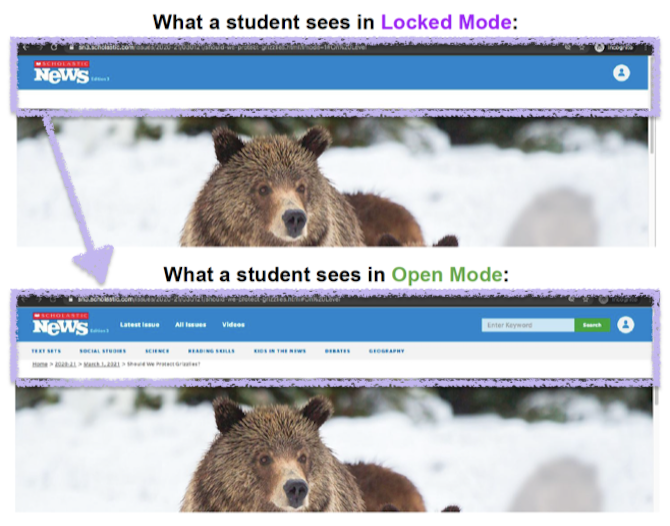
If you share a link to an article using Locked Mode, students can only view that specific article and are prevented from seeing the rest of the site. If you share a link to an article using Open Mode, students can easily navigate to other parts of the site.
After copying the link to your clipboard, you can paste it into whatever system you’re using to share links with students. They’ll need to log in as a student using your classroom password.
Bonus tip! If an article has multiple Lexile levels, you can assign a specific level to your students by clicking the button for the level first, then clicking the share icon and copying the link. Students can still toggle to different levels if they want, but this way they’ll be directed to the level you choose.
If they need help signing in, students can just follow these steps:
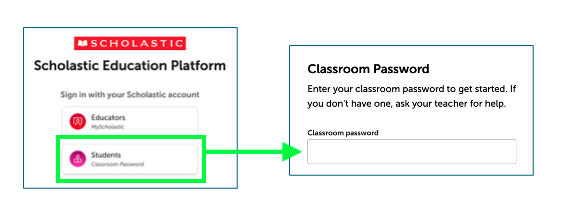
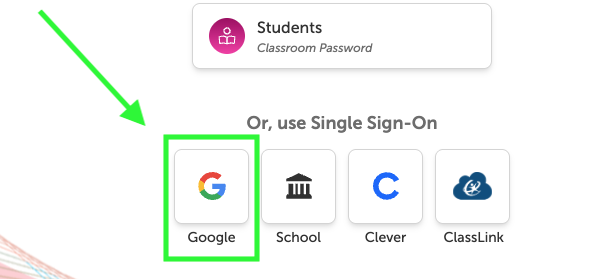
That’s it! Once they sign in, they’re taken to the student view. And if your school uses Google Classroom, the process is even simpler. Once you sync your account with Scholastic, all your students need to do is click the Google button. They will not need a classroom password.
Can I share just one article?
Can I share just one article?
Yes! If you share a link to an article using Locked Mode, students can only view that specific article and are prevented from seeing the rest of the site.
Is there a way I can preview student view?
Is there a way I can preview student view?
Yes! To the left of any article, click on the See Student View button to preview exactly what students will see when they view the page.